Add/Edit Pulleys
HelixChute2 can model conveyor pulleys in the transfer – you can have as many as you like in a design.
Adding a pulley
- Open a new or existing project.
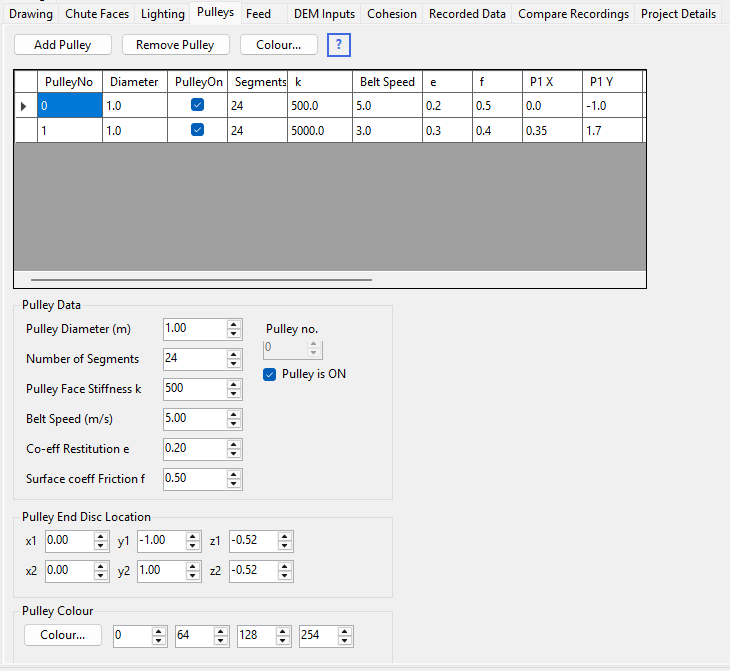
- Click the Pulleys tabsheet. The Pulleys table and current settings are shown, with text boxes below the table showing the currently selected row.
- Click in the empty row of the table and type a diameter (in metres) for the pulley.
- Move to the newly added row to select it – its details appear in the text boxes below.
- Edit the pulley diameter, number of segments, face stiffness and belt speed. A negative belt speed reverses the direction of rotation.
- Enter the pulley's location by specifying the X, Y, Z location of the centre of each end disc.
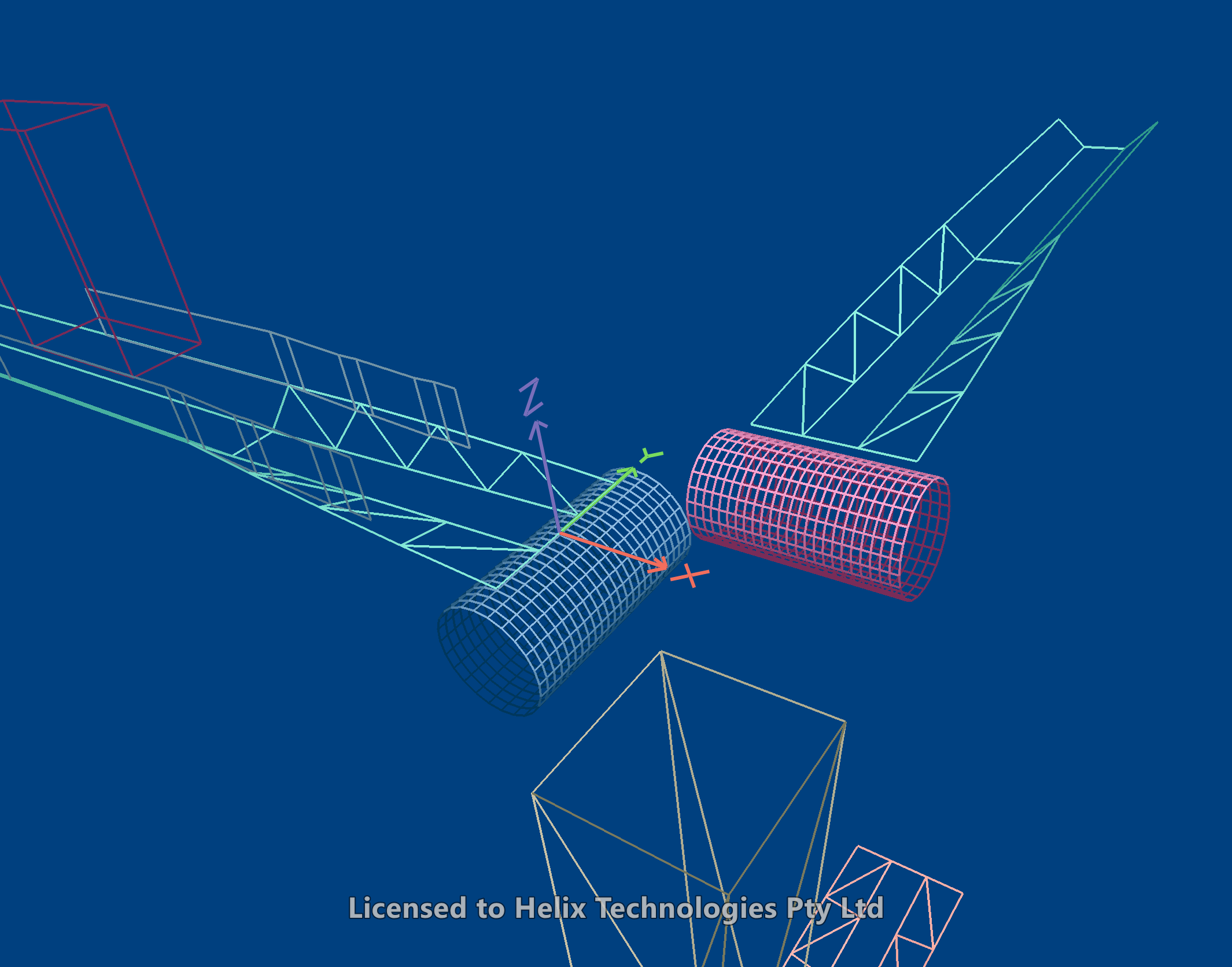
- Set the pulley's colour with the colour button. It is drawn solid or wireframe depending on the current drawing settings – in the Transparent display mode it is drawn as a wireframe cylinder, so it can be seen through the chute around it.
During calculation, if a particle collides with the pulley surface it is reflected according to the co-efficient of restitution, and moved in the direction of rotation at the belt speed you entered. If particles seem to be reversed unexpectedly when they hit the pulley, reverse the direction by entering a negative pulley speed.
Use the PulleyOn switch in the table to include or exclude a pulley from both drawing and calculations.