Drawing Settings, Zoom etc.
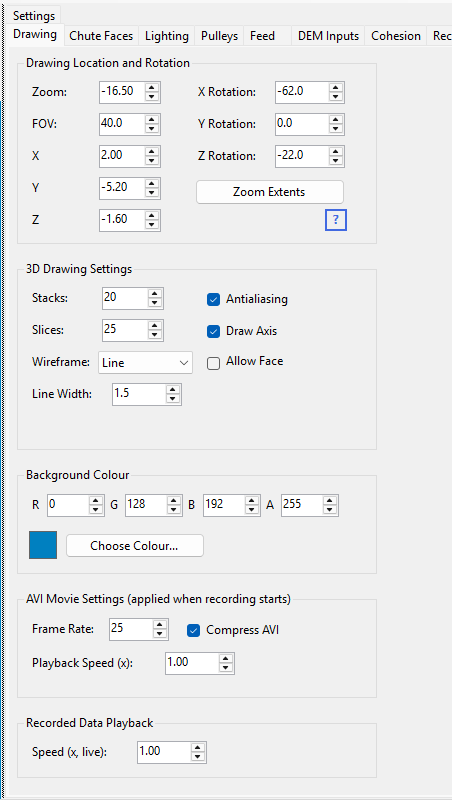
The Drawing settings let you view the model from different angles and distances. They are saved with the project file and live on the Drawing tabsheet. HelixChute2 uses OpenGL to render the 3D view.
Mouse controls
- Left-click and drag in the drawing to rotate the model.
- Right-click and drag to pan the model (move it left/right/up/down).
- Scroll the mouse wheel to zoom in and out.
- Hover the mouse near a vertex or face while the Chute Faces tab is visible, and the nearest Layer, Face and vertex are highlighted in the Layers/Faces/Vertices tables, with the hovered face's own edges outlined in yellow in the 3D view – a quick way to find which entry in the tables corresponds to what you're looking at on screen, and vice versa.
- Click a row in the Chute Faces tab's Vertices table to mark that vertex with a small magenta X in the 3D view, with its face outlined in yellow. The X shows even when the vertex is behind another face. Hovering moves the X to the hovered vertex, so it always matches the selected row in the table.
View settings
The X, Y, Z position and Rotation values let you adjust the drawing's position and viewing angle numerically. X Position and Y Position move the drawing across the screen (left-right and up-down), the same as dragging with the right mouse button. Z Position moves the model along its own Z axis instead, so when the view is rotated it moves diagonally on screen, following the model. To move the drawing towards or away from you, use Zoom. The FOV box is the perspective field-of-view angle.
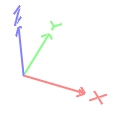
The drawing is 3-dimensional: X runs left/right, Y in/out of the screen, Z up/down. Rotation angles are in degrees – try both positive and negative values.
Stacks and Slices control how finely particle spheres and pulley cylinders are subdivided when drawn. They only affect appearance, not calculation accuracy – higher values use more drawing resources.
Wireframe mode
The Wireframe setting chooses how faces are drawn:
- Fill – draws faces as solid, lit surfaces (each layer's ColorA still makes it partly see-through, but a face can hide what is behind it).
- Line – draws face outlines only.
- Point – draws face vertices only.
- Transparent – a see-through view of the whole chute, like a CAD X-ray view: every face is drawn in its layer colour with a thin outline round its edges, and everything behind it – pulleys, particles and other faces – shows through. Pulleys are drawn as wireframe cylinders. How see-through each layer is comes from its ColorA value in the Layers table (lower is more see-through; around 80–130 works well), and a white background gives the clearest result. Faces look the same from either side in this mode, whichever way they were wound.
Line Width sets the wireframe line width in pixels (fractional values are allowed, e.g. 1.5; default is 1.0). Antialiasing smooths lines and edges at the cost of more drawing resources. Draw Axis draws the X, Y, Z axes at the origin. Background colour sets the drawing background (RGB plus transparency) – type the Red, Green and Blue values, or click Choose Colour... to pick one from the Windows colour picker; the swatch beside it previews the result.
Copying the drawing to the clipboard
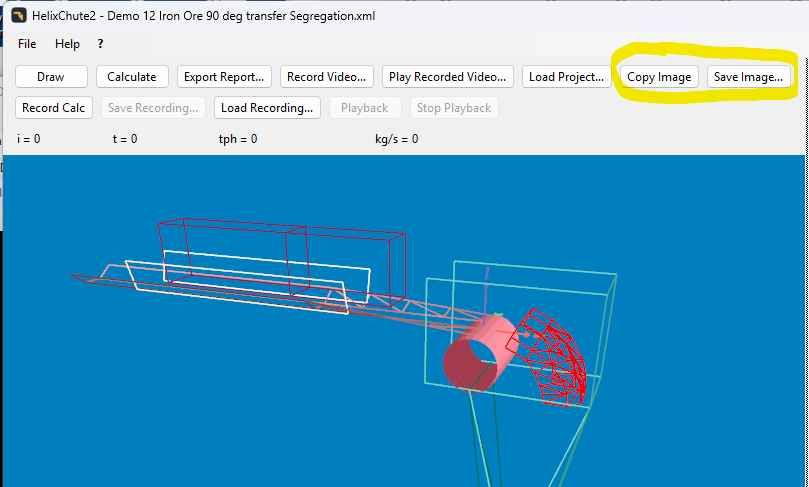
Click the Copy Image button above the 3D view to copy the current chute scene straight to the Windows clipboard as an image – paste it directly into a Word document, email, or PowerPoint slide for reporting purposes. There is no need to save a file first.
Saving a high-resolution image
Copy Image gives a picture exactly the size of the 3D view on screen. That looks fine at the same size, but its thin lines and small particles go soft or jagged when the picture is enlarged, printed, or stretched to the width of a report page. For those, click Save Image... next to Copy Image instead. The scene is redrawn at 2, 3 or 4 times the view's size, with line widths scaled to match, so it stays sharp.
- Image size – each option shows the size in pixels. 3x is a good choice for reports. A size your graphics card can't manage is greyed out.
- Save As... – saves the image as a PNG (best quality), JPEG or bitmap file.
- Copy to Clipboard – copies the high-resolution image instead, ready to paste.
The image shows the calculation exactly where it is at that moment – saving it doesn't move the calculation on – and leaves out the yellow outline of the face under the mouse. It's also marked with a matching resolution, so Word and similar programs insert it at the same size as a Copy Image picture, just sharper.