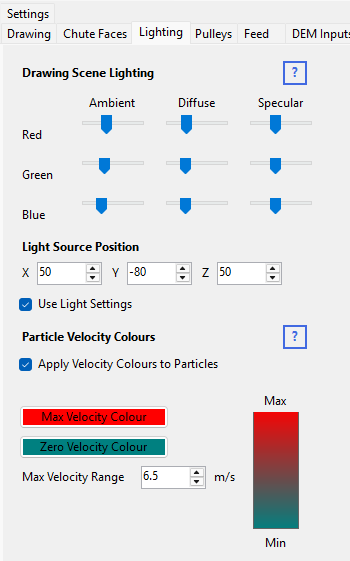
Drawing Scene Lighting
HelixChute2 lights the 3D view with a single OpenGL light source, set up on the top half of the Lighting tabsheet (the bottom half is Particle Velocity Colours – a separate setting, not part of the lighting itself).
Ambient, Diffuse, Specular
Three Red/Green/Blue slider columns set the light's colour and intensity for each of OpenGL's standard lighting components:
- Ambient – general background light that reaches every surface evenly, regardless of its angle to the light. Raise this to lighten shadowed faces that would otherwise render almost black.
- Diffuse – the light's main colour, scattered off each surface according to how directly it faces the light. This is what gives faces their shaded, three-dimensional look rather than a flat colour.
- Specular – the light's colour in a surface's direct reflection (a highlight). Least noticeable on this program's matte, flat-shaded faces.
Every face and particle takes its own base colour from its own settings (Layers table, Feed tabsheet, or the velocity colour scale below) – the light tints that colour on top, it doesn't replace it. A warm, slightly orange diffuse colour is what gives the default scene its warm-toned look rather than a flat, untinted render.
Light Source Position
X, Y, Z sets where the light sits in the scene, in the same axes as the drawing itself (see Drawing Settings, Zoom etc.). This is a positional light, not a directional one – moving it changes which side of the geometry looks lit versus shadowed.
Use Light Settings switches lighting on and off entirely. With it off, every face and particle renders at its own flat, unlit colour – useful for a plain, evenly-lit screenshot where shading would otherwise obscure a colour you're trying to show clearly.
Lighting doesn't change the chute's faces in the Transparent display mode, which always draws them in flat, unlit colour so they look the same from either side (see Drawing Settings). Particles are still lit as usual.