Trace a Single Particle
Once you've built the chute model, run a calculation, and recorded it (see Recording Calculation Results), you can draw a trace of any particle's complete path through the model.
- Do the DEM calculation and record it.
- If the calculation is running, press Stop Calculation.
- Go to the Recording tabsheet – the upper table shows recorded time steps, the lower table the per-particle data for the selected time step.
- Click a row in the upper table to redraw the chute with particles at that time step. Use the down arrow key to step forward.
- Click a row in the lower table – the corresponding particle is highlighted in bright orange-red in the drawing.
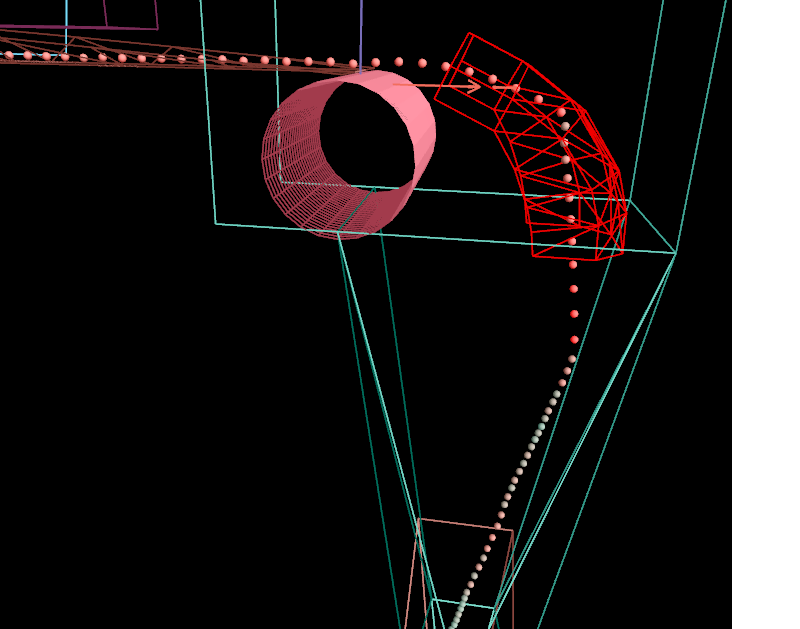
- Right-click the lower table and choose Draw Trace this Particle.
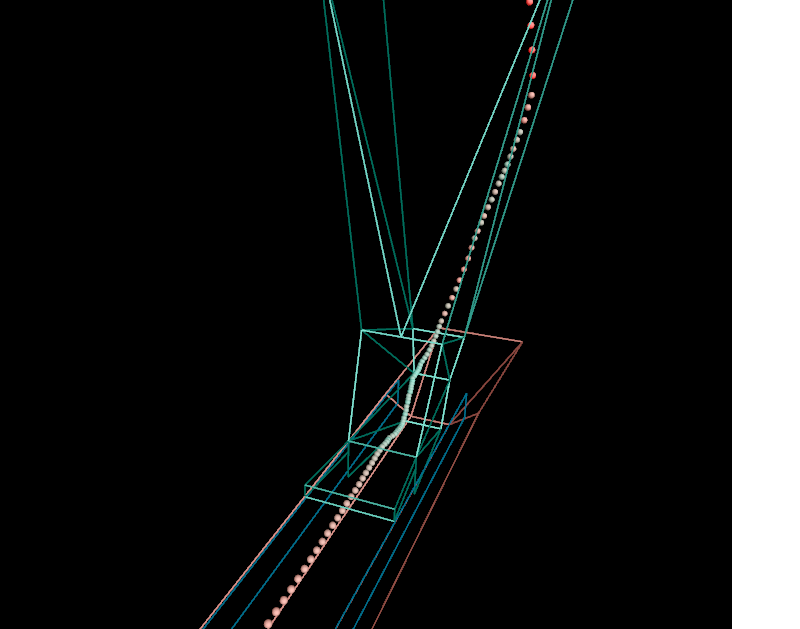
The full path taken by that particle through the transfer is drawn.
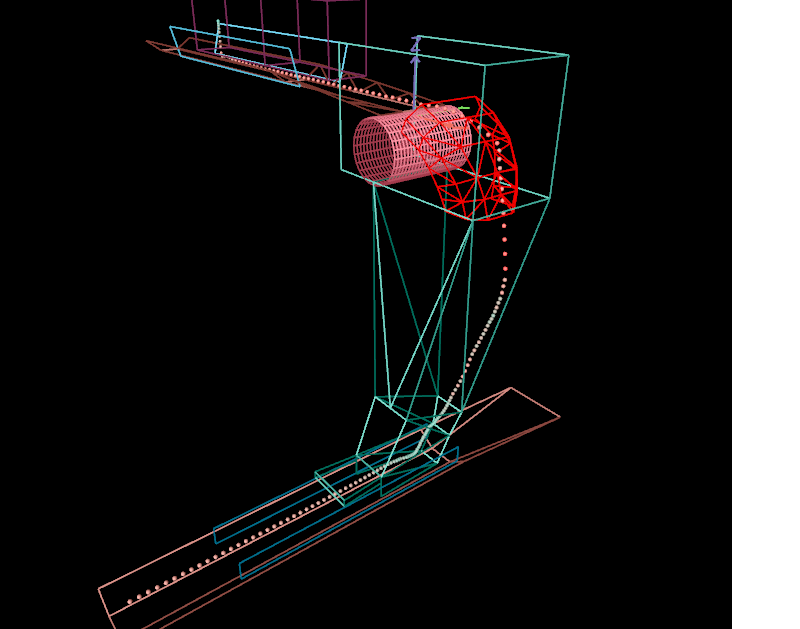
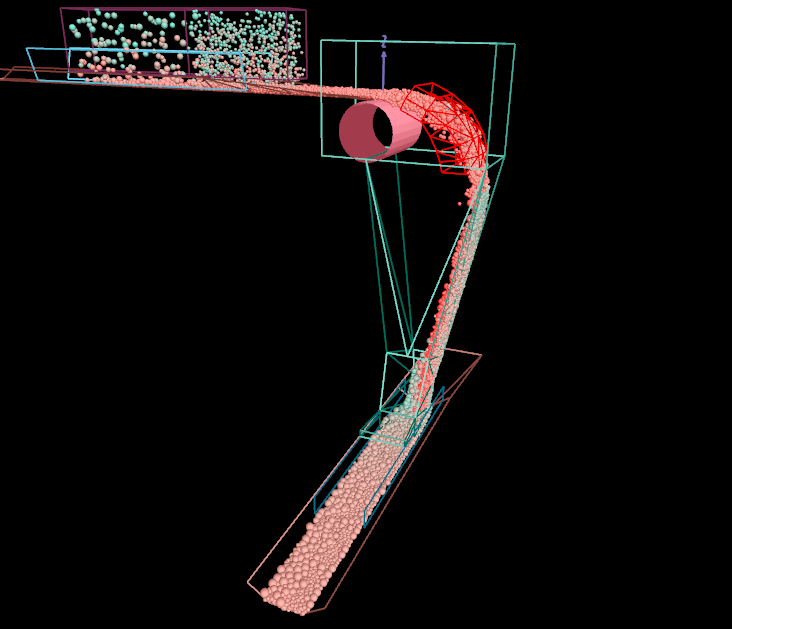
You can export this trace and the chute drawing to CAD/3D formats – see Exporting Geometry. You can also generate a detailed report for just this one particle – right-click and choose View Report - this Particle. See Calculation Reports.