Recording Calculation Results
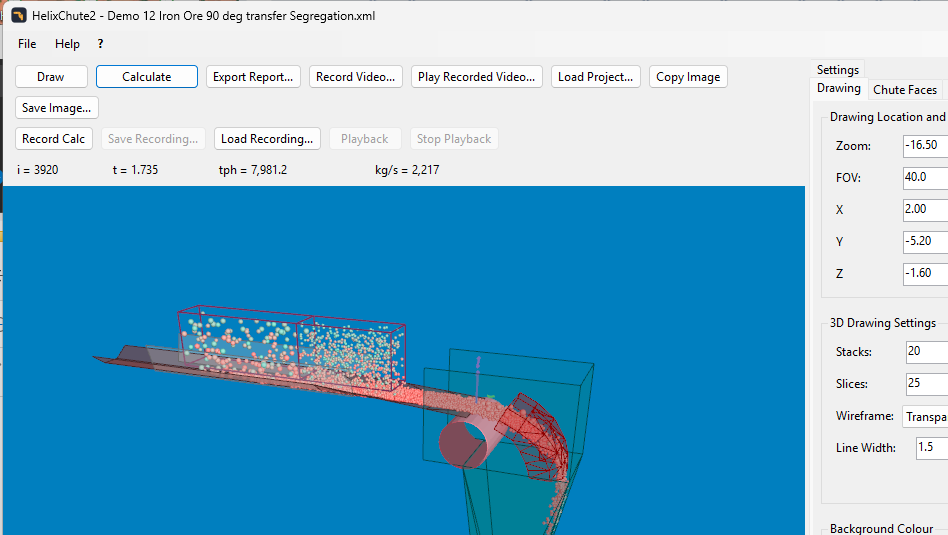
You can run a DEM calculation and record the results for later analysis and reporting. Recording doesn't need to capture every calculation step, only a subset – e.g. a setting of 60 frames per second (fps) records 60 steps per second for playback, even at a Critical Time Step dt of 0.005 s (1/0.005 = 200 calculation steps per second). These recordings capture the position and velocity of every individual particle and can be used to estimate belt/chute wear rates, impact energy and more. You can also record a video – see Record a Video (MP4).
A very high fps setting means many more time steps have to be recorded, using more memory, CPU time and disk space.
To record a calculation
- Build your transfer chute model and enter all required design data.
- Run a trial calculation at a low feed rate (e.g. 50–100 tph) to check the model and finish fine-tuning.
- If the calculation is running, press Stop Calculation.
- Press Record Calc (it changes to Stop Recording Calc while active).
- Press Calculate to run the DEM calculation for the trial run – use Stop Calculation / Calculate to pause and resume as needed.
- After the calculation has run for a while, press Stop Calculation.
- Go to the Recording tabsheet, which shows two tables – recorded time steps in the upper table, and the per-particle data for the selected time step in the lower table.
Click a row in the upper table to redraw the chute with particles at the positions recorded for that time step (once you do, the calculation can no longer be resumed – it must be restarted from scratch). Use the down arrow key to step through subsequent time steps. Clicking a row in the lower table highlights that particle in bright orange-red in the drawing.
Right-click a row in the lower table for a context menu: Draw Trace this Particle, View Report - all Particles and View Report - this Particle. See Trace a Single Particle and Calculation Reports.
Review particle velocity to confirm it reaches the correct belt speed before the discharge point – you may need a longer belt run-up so particles have enough contact time to reach speed.
Saving and deleting a recording
Use the Save/Open buttons on the toolbar above the drawing to save the recorded data as an XML file (openable in Excel or any text/XML tool) or reload a previously saved one. To delete a recording, right-click the upper table on the Recording tabsheet and choose the delete option – there is no undo, so be sure before discarding data.