DEM Inputs and Settings
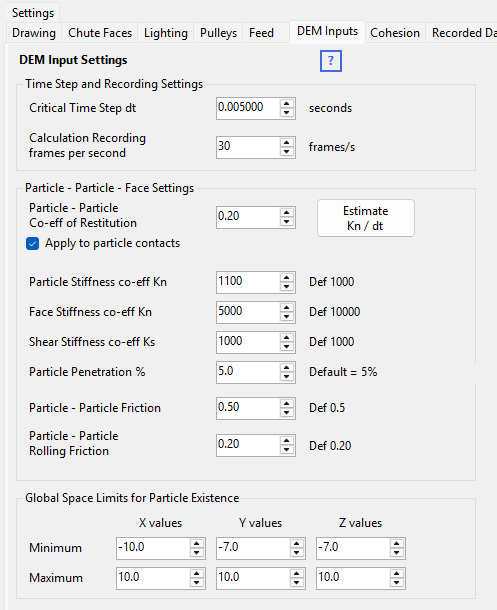
The DEM calculation needs a handful of input parameters that control the collision response and velocity of particles as they move through the transfer. These are all set on the DEM Inputs tabsheet.
Time Step and Recording Settings
- Critical Time Step dt – the time interval between calculation steps. Keep it as small as practical: too large a step lets particles move too far in one step and overlap faces or other particles, while too small a step increases calculation run time.
- Calculation Recording frames per second – how many recorded frames per second of simulated time are kept for later playback and reporting. Recording doesn't have to capture every calculation step, only a subset. Higher fps records more data (more memory, CPU time and disk space); the default is 25 fps.
Particle – Particle – Face Settings
- Particle – Particle Co-eff of Restitution – between 0 and 1:
how much of its approach speed a pair of particles keeps when they bounce apart. 1 is a
perfectly elastic rebound, 0 means they do not bounce off each other at all. This only has an
effect when Apply to particle contacts (below it) is ticked – see
Applying restitution between particles.
Bounce off chute faces and pulleys is separate from this: each chute layer and each pulley carries its own e value – see Add/Edit Layers, Faces, Vertices and Co-efficient of Restitution. - Apply to particle contacts – switches the restitution above on for particle-to-particle collisions. Off by default – see below.
- Particle Stiffness co-eff Kn (default 1000) – see DEM Theory. If particles bounce off each other too much, reduce this; if they overlap too much, increase it. Smaller particles need a lower value, larger particles a higher one – try a few settings at a low feed rate first. The Estimate Kn / dt button can suggest a starting value from your particle size and density.
- Face Stiffness co-eff Kn (default 10000) – the stiffness used when particles collide with chute faces – how firmly a particle that has sunk into a face is pushed back out. Too high and particles bounce off faces violently; too low and they sit visibly sunk into the face. Each particle's value is scaled to its size, and raised where needed by Particle Penetration % below, so a low setting no longer lets particles "bleed" through faces the way it could in the legacy program, unless a moving face's velocity is set incorrectly (see Illustrating face stiffness). Try a few settings at a low feed rate.
- Shear Stiffness co-eff Ks – the tangential (sliding) spring stiffness at a contact. It works together with the friction co-efficients: friction sets the limit on how much tangential force a contact can hold, and Ks sets how quickly that force builds up as the surfaces slide.
- Particle Penetration % – the largest overlap into a chute face you are prepared to accept, as a percentage of the particle's radius. Each particle is given a minimum face stiffness worked out from its own size and mass so that a resting particle does not sink further than this into a face, which stops small or heavy particles bleeding through faces at a face stiffness that suits the rest of the model. Set it to 0 to switch the minimum off and use the Face Stiffness value alone.
- For particle-particle cohesion (wet/sticky material), use Cohesion Energy Density k on the Cohesion tabsheet – see Simulating Wet/Sticky Material (Cohesion).
Applying restitution between particles
Particle-to-particle contact is modelled as a spring, and a spring gives back everything it absorbs – so with Apply to particle contacts unticked, particles rebound off each other perfectly elastically whatever restitution is set to. Ticking it adds damping to that spring, so a colliding pair separates at the fraction of its approach speed you asked for. Use it when particles look too lively off each other – bouncing around in a pile that should be settling, for instance.
A low restitution is the heavily damped setting and 1.0 applies no damping at all – see Particle – Particle Damping (Restitution) for what each value does, where the difference shows up, and what to check before switching it on for an already-calibrated model.
Global Space Limits for Particle Existence
These X, Y, Z minimum/maximum values define a bounding box for particle existence – any particle straying outside it is deleted. Keep the box just large enough to enclose your whole transfer station. This is a key part of how HelixChute2 reaches a stable equilibrium: new particles are created at the feed boxes while old ones are removed at the downstream boundary, so the total particle count settles rather than growing indefinitely.
Illustrating face stiffness
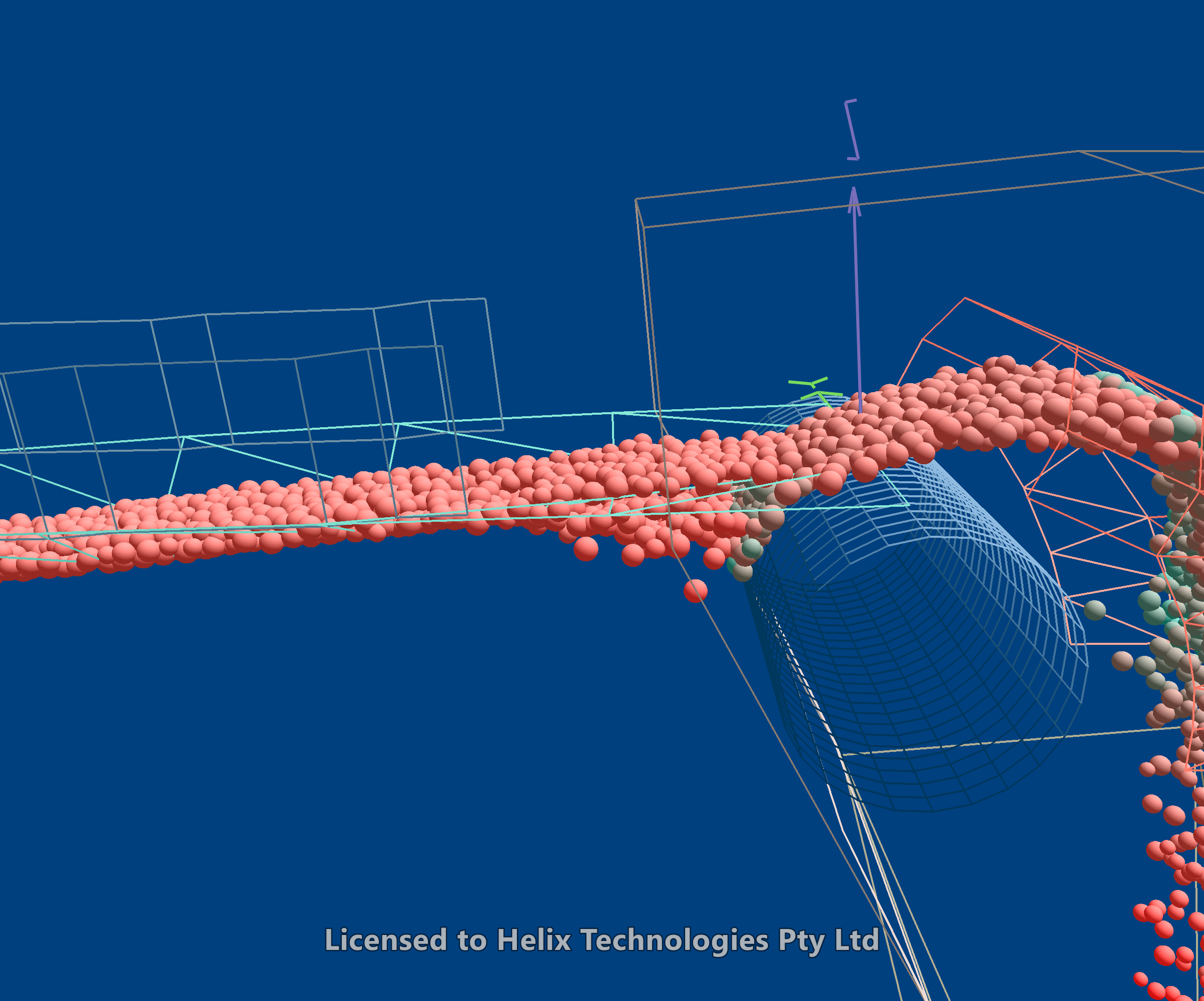
As a particle collides with a nearly horizontal face, the impulse repels it, but gravity pulls it back to the face. Each bounce is smaller than the last (an elastic collision with restitution below 1) until the time between collisions becomes very small. From then on the particle rests in the face, sunk in just far enough that the face's push back balances its weight – the softer the face, the deeper it sinks.
In the legacy program a soft enough face let a particle sink until its centre passed through the face. The face then pushed it the wrong way – on through the face rather than back – and the particle bled through. HelixChute2 always pushes a particle back against the direction it is travelling, so on a correctly set up face this no longer happens: with a low face stiffness, particles sit deeper in the face instead of falling through it. Particle Penetration % also sets a minimum face stiffness for each particle, so with its usual setting (5%) even a very low Face Stiffness value has little visible effect. To see the Face Stiffness value on its own, set Particle Penetration % to 0.
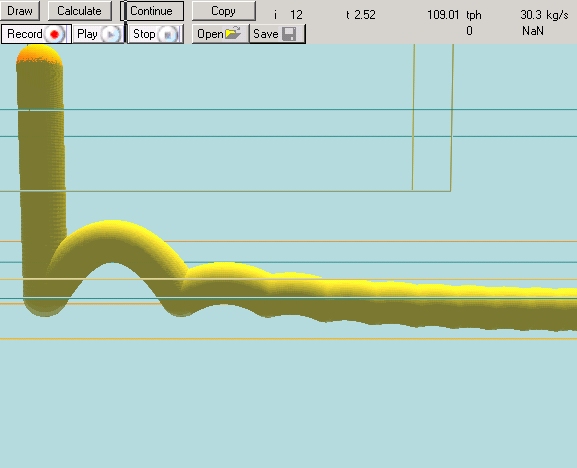
If face stiffness is too low, the number of collisions becomes excessive as gravity continually pulls the particle back down. Restitution controls the large bounces, but at low approach velocity, face stiffness takes over. A moving face (belt) transmits some of its velocity to the particle through the layer's friction input – see Add/Edit Layers, Faces, Vertices.