Add/Edit Layers, Faces, Vertices
You build up your transfer station by adding Layers made of Faces. See Chute Drawing Data Structure for what Layers, Faces and Vertices mean.
Layers
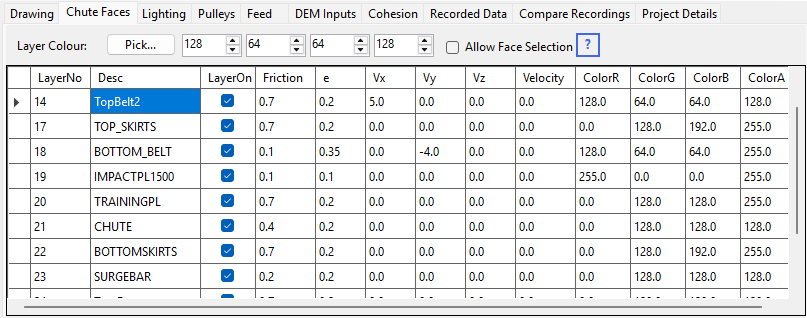
Layers are managed in the Layers table on the Chute Faces tabsheet.
- Right-click the Layers table for a context menu: Add New Layer, Draw Belt..., Draw Curved Impact Plate..., Draw Discharge Head Box..., Draw Rock Box..., Draw Lower Chute..., Draw Loading Boot..., Draw Skirts..., Draw Discharge Trajectory..., Remove Discharge Trajectory, Copy Layer, Copy and Scale Layer..., Merge Selected Layers..., Adjust X,Y,Z coordinates, Rotate Layer..., Round off Vertices, Remove Duplicate Vertices, Make Face Winding Uniform and Remove Layer.
- Drag a layer's row up or down the table to reorder the layers, so related layers sit together.
- The Desc, LayerOn, Friction, E (restitution), Vx/Vy/Vz and colour columns are all editable directly in the table.
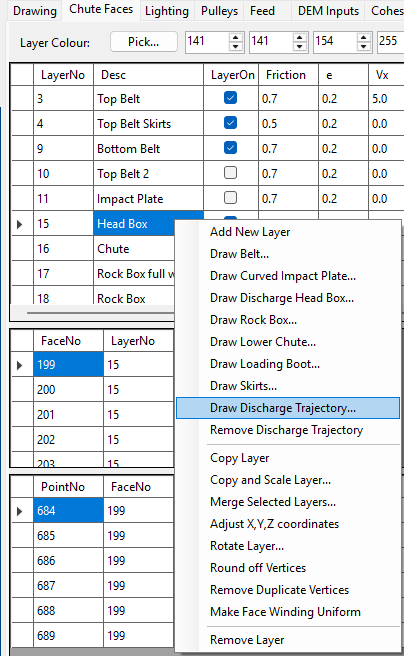
Turn a layer off to exclude it from both the drawing and the calculations. The Friction column is the wall friction co-efficient for the surface (also used to impart belt velocity to particles on a moving belt). E is the co-efficient of restitution for the surface – see Co-efficient of Restitution.
If the layer represents a moving conveyor belt, enter its velocity as X, Y, Z vector components in Vx, Vy, Vz. Break the belt speed into its vector components, e.g. a 4 m/s belt on a 15° slope (in the X axis direction) gives Vx = 4cos(15°) = 3.8637 and Vz = 4sin(15°) = 1.0353.
The colour columns are Red, Green, Blue (0–255) plus an Alpha/transparency column (255 is solid, lower values are more transparent). Type a value straight into a colour cell, or use the colour spinners and colour button above the table. The Alpha column matters most in the Transparent display mode, where it sets how see-through each layer is – see Drawing Settings.
Faces
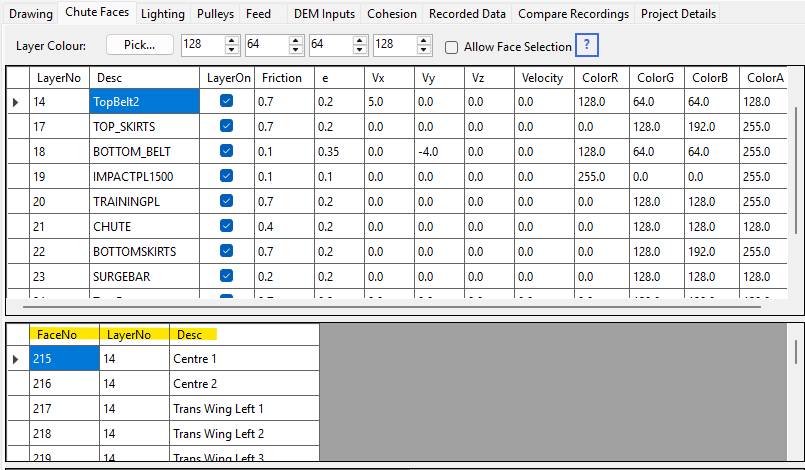
Add a Face to a layer in the Faces table. Each layer can have as many faces as you like. The Desc column is editable directly in the table. FaceNo and LayerNo are auto-assigned by the program. Right-click the Faces table for a context menu: Add Face, Copy Face, Remove Face, Triangulate Face, Swap Face Winding Direction and Move Face to New Layer....
Vertices
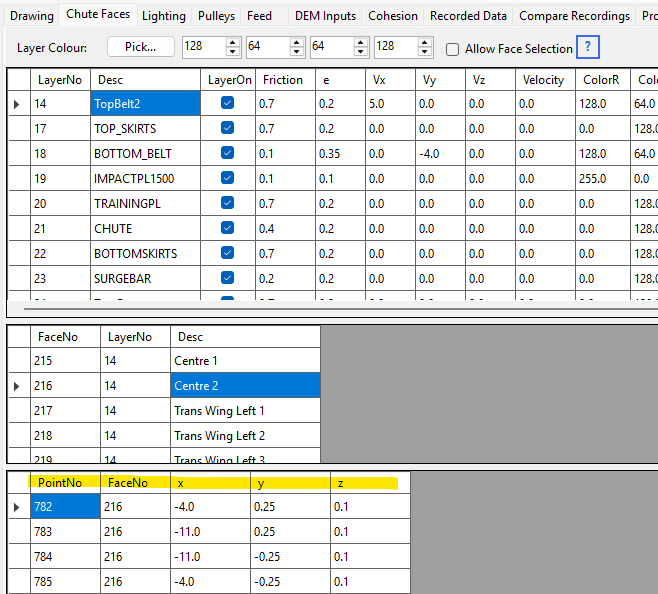
Add vertices for a face in the Vertices table – the X, Y and Z columns (in metres) are all editable directly. You need at least 3 vertices to form a face; if you add more than 3, make sure they are all coplanar. Do not enter a duplicate vertex within the same face – this causes erratic particle movement (see FAQ).
To find a vertex in the drawing, click its row in the Vertices table: a small magenta X marks it in the 3D view and its face is outlined in yellow. This needs Allow Face Selection ticked.
Curved surfaces can be represented as a series of rectangular strip faces. You can also draw faces in a CAD or 3D program and import them instead of entering vertices by hand.
If a face was imported from CAD with redundant or slightly misaligned vertices, right-click the Layers table and use Round off Vertices (rounds X, Y, Z to 3 decimal places) followed by Remove Duplicate Vertices to clean it up.