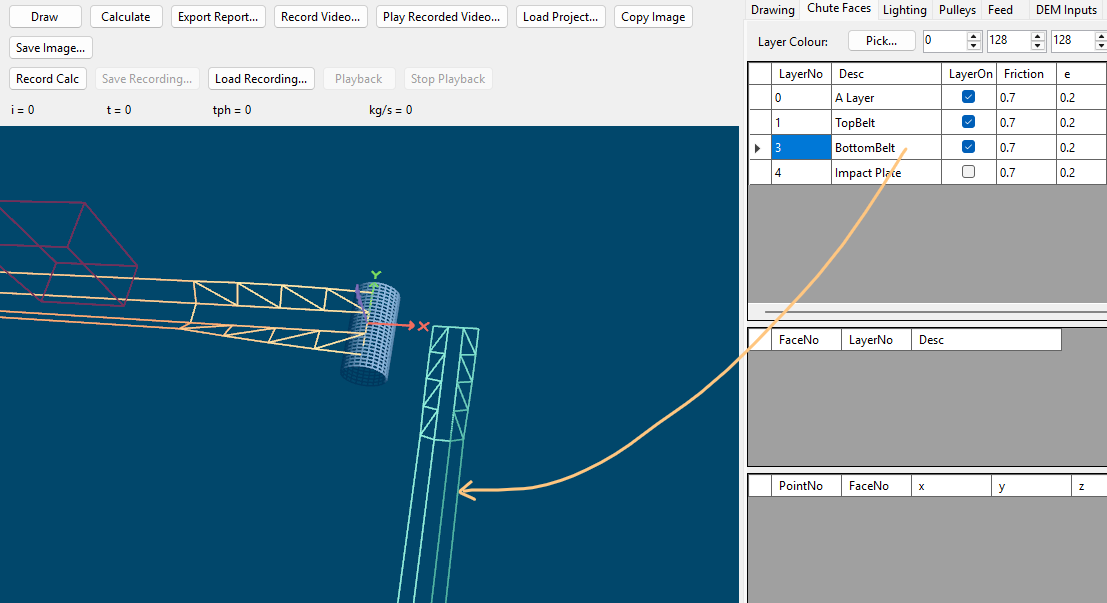
Draw Belt
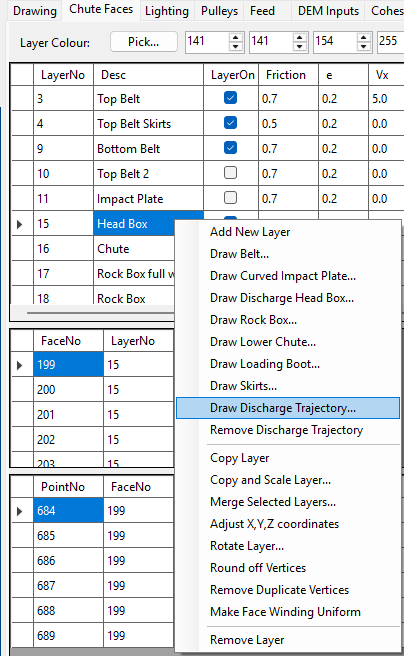
Right-click the Layers table on the Chute Faces tabsheet and choose Draw Belt... to build a troughed conveyor belt run parametrically, instead of adding faces and vertices by hand. This is the quickest way to add a top belt, bottom belt, or any other troughed conveyor surface to a project.
Dimensions
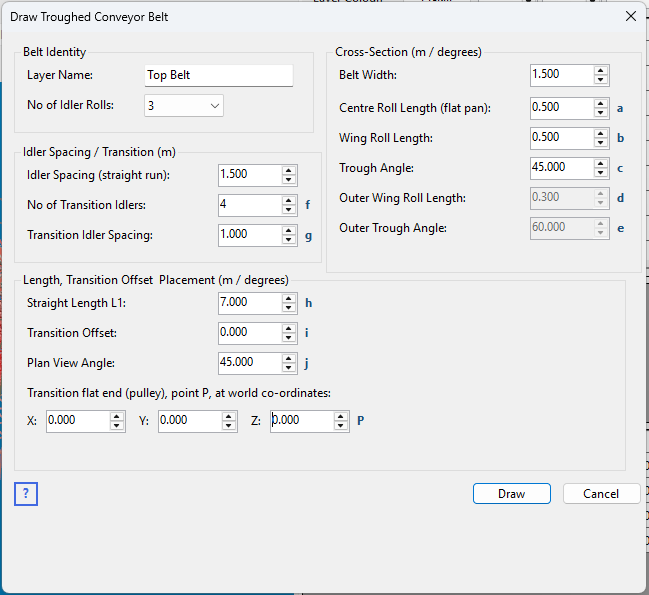
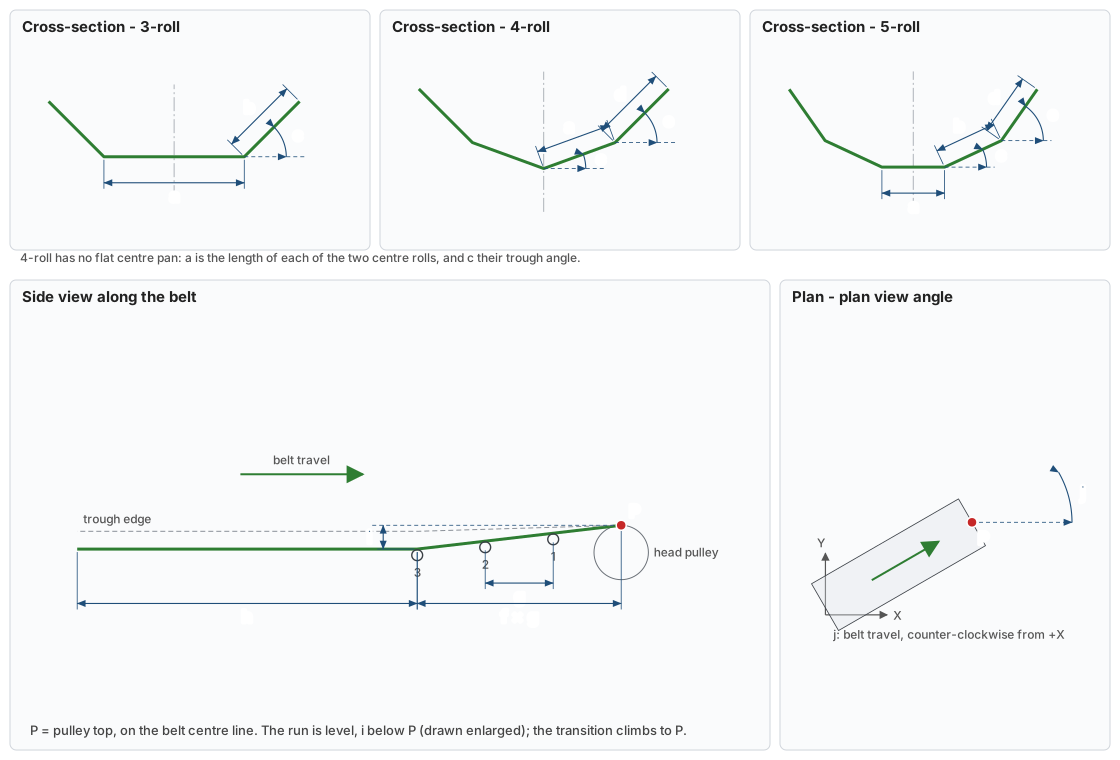
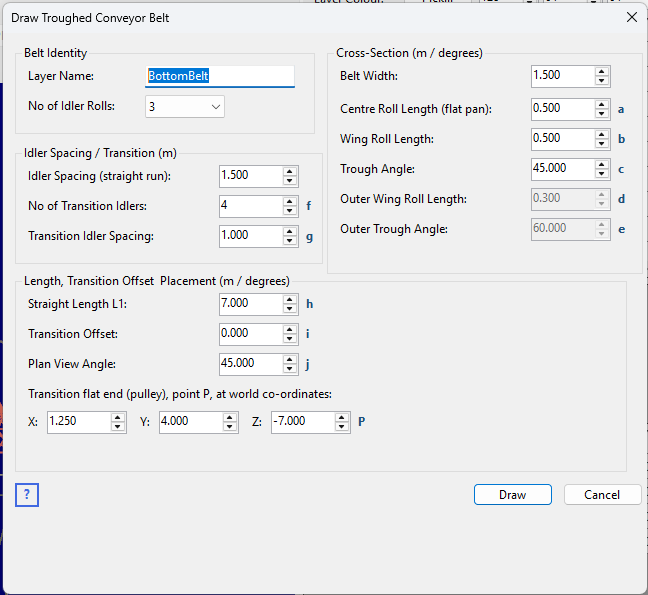
The small letters beside the input boxes match the dimensions on this drawing.
| Letter | Input | What it measures |
|---|---|---|
| a | Centre Roll Length | The flat centre pan (3 and 5-roll). For 4-roll, the length of each of the two centre rolls. |
| b | Wing Roll Length | The wing roll next to the centre pan (3 and 5-roll; not used by 4-roll). |
| c | Trough Angle | That roll's angle up from horizontal (for 4-roll, the centre rolls' angle). |
| d | Outer Wing Roll Length | The outer wing roll (5-roll), or the wing roll (4-roll). Not used by 3-roll. |
| e | Outer Trough Angle | That outer roll's angle up from horizontal. |
| f | No of Transition Idlers | How many idlers the trough takes to develop from flat at the pulley to its full angle. |
| g | Transition Idler Spacing | The distance between transition idlers. The transition is f × g long, and level. |
| h | Straight Length L1 | The fully troughed run beyond the transition, measured along the belt. |
| i | Transition Offset | How far the pulley top P sits above the troughed run. The run is drawn level this far below P, and the transition climbs up to P – see Elevated pulley transition. |
| j | Plan View Angle | The direction of belt travel in plan, counter-clockwise from +X. |
| P | X, Y, Z | The pulley top: the transition's flat end at the pulley, on the belt's centre line, at the belt's top surface. The same point Draw Discharge Head Box is placed by. |
Cross-section
Choose the number of idler rolls (3, 4, or 5) and enter the roll lengths and trough angles for each tier. Belt width is derived automatically from the roll lengths you enter, independent of trough angle:
- 3-roll – a flat centre pan plus one wing tier on each side.
- 4-roll – no flat pan at all: two centre rolls meeting on the belt's own centreline, plus one wing tier on each side.
- 5-roll – a flat centre pan plus two wing tiers (inner and outer) on each side.
Transition zone
Enter the number of transition idlers and their spacing to build a short wedge near the pulley end where each wing's trough angle ramps up gradually from flat to its fully-developed angle, followed by one long straight run at the Straight Length L1 you enter.
Elevated pulley transition
As the belt goes from fully troughed to flat over the pulley, its edges are stretched more than its centre. To reduce that edge tension it is common practice to raise the pulley above the line of the troughing idlers' centre rolls – an elevated pulley transition, which CEMA calls a "half trough transition" and for which it recommends raising the pulley by half the trough depth.
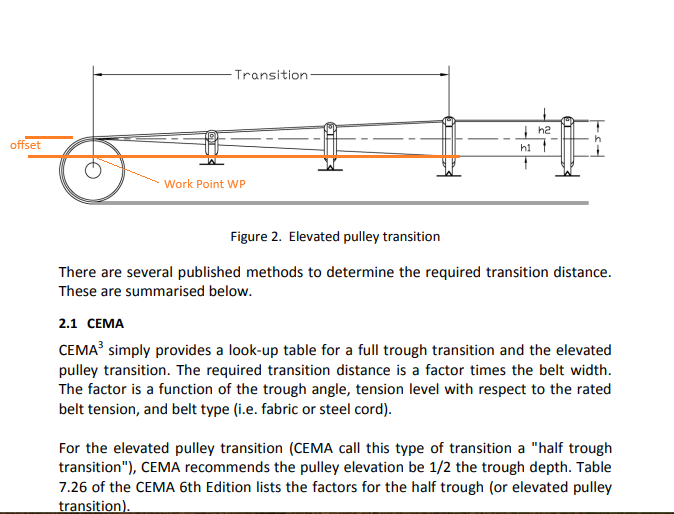
Transition Offset (i) is that height. Draw Belt keeps the pulley top P where you place it, draws the troughed run level, the offset below P, and climbs the transition's centre line straight up from there to P while the wings flatten. It is suggested at half the trough depth and follows the roll lengths and trough angles until you type your own value. Enter 0 for a transition that stays level with the run. With no transition idlers there is nothing to climb along, and the offset is ignored.
Placement and naming
Enter the belt's origin (X, Y, Z) and a plan rotation angle to position and orient the whole run in world space. Every generated face is placed into a new Layer named after the belt (e.g. "TopBelt"), with each face given a distinct, role-based name (e.g. "Wing Left 1", "Trans Wing Right 3") rather than sharing one generic name – useful when picking a specific face out afterward in the Faces table.
Faces are named using the belt-conveyor convention for Left/Right: as viewed facing the direction of material travel, not a raw world Y coordinate.
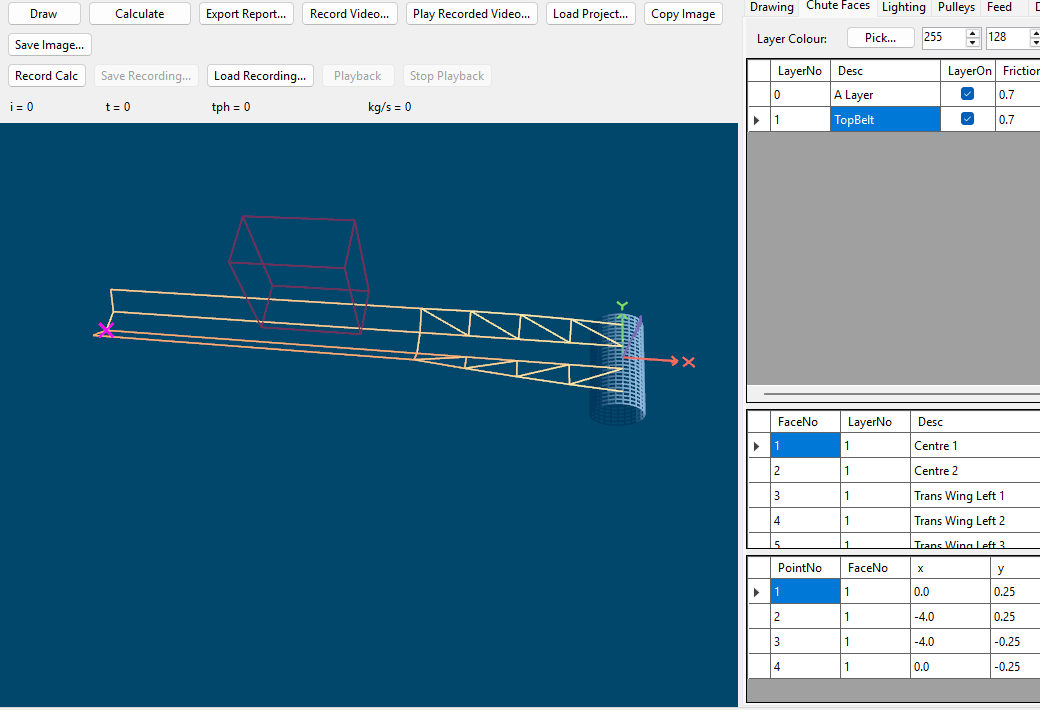
You can add as many belts as required. The images below show how to add a receiving belt located 7m below the top belt and at a 90 degree angle to the top belt. Note the location of the belt is X 1.25, Y 4.0 and Z -7.0. Therefore an offset of 1.25m in X direction and 4.0m in Y direction and 7.0m below the top belt and the Plan View Angle is 90 degrees. Both of the these belts were add as level belts but it is easy to add the belt and then rotate it about (say) the Y axis to get is inclined or declined.
The above input results in the image below.