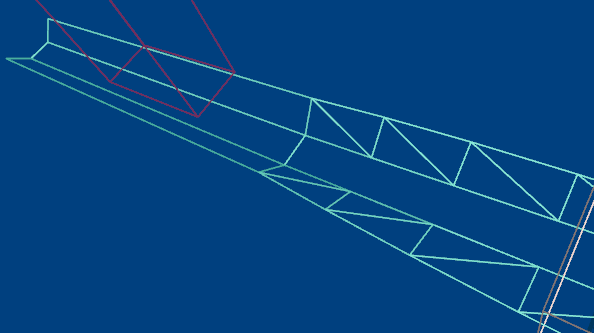
Triangulate Face
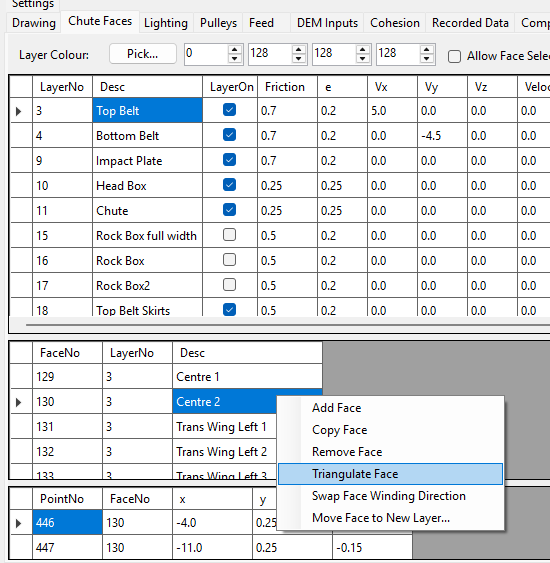
Right-click the Faces table on the Chute Faces tabsheet and choose Triangulate Face to split the currently selected 4-point face into two triangular faces, keeping all four of the original face's own outer points.
Why triangulate a face
A face with more than 3 points must be coplanar – see Add/Edit Layers, Faces, Vertices. A 4-point face built by hand, imported from CAD, or generated by a tool like Draw Belt can sometimes end up slightly non-planar (e.g. one corner doesn't quite sit in the same plane as the other three). A triangular face is always exactly planar, whatever its three points are, so splitting a suspect quad into two triangles is a quick, reliable fix.
Using it
Select the face in the Faces table, right-click, and choose Triangulate Face. The face is replaced by two new triangular faces, sharing the diagonal between the original face's 1st and 3rd points – the two new faces land next to each other in the Faces table, in the same layer, with the same appearance and physics settings (Friction, E, colour, belt velocity) as the original. This only works on a face with exactly 4 points; if the currently selected face doesn't have exactly 4 points, a message explains why nothing happened.