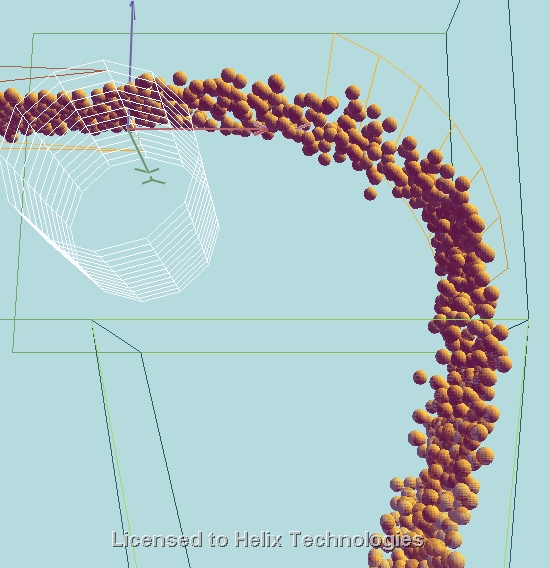
Draw Curved Impact Plate
Right-click the Layers table on the Chute Faces tabsheet and choose Draw Curved Impact Plate... to import a ready-made curved impact plate shape, scaled automatically to your belt width, instead of drawing or importing the geometry by hand.
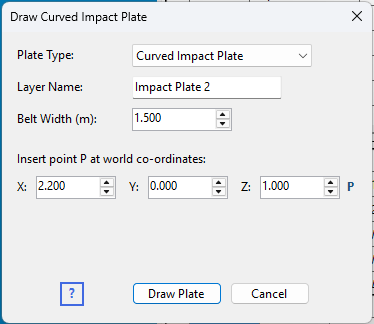
Fields
- Plate Type – which ready-made shape to insert (see Plate types below).
- Layer Name – the name of the new Layer the imported faces are placed into.
- Belt Width (m) – the plate template is scaled by your belt width ÷ 1.5 m (every template's own reference width), about a fixed work point at the centre of the template's front edge.
- Insert point P at world co-ordinates (X, Y, Z) – where that same work point, P, lands once the plate is placed into your project.
Insert point P
The letter P beside the X, Y, Z boxes marks the plate's work point: the centre of its front (leading, top) edge – where the stream first lands. The plate is placed so that P sits exactly at the X, Y, Z you enter, whatever its size or type.
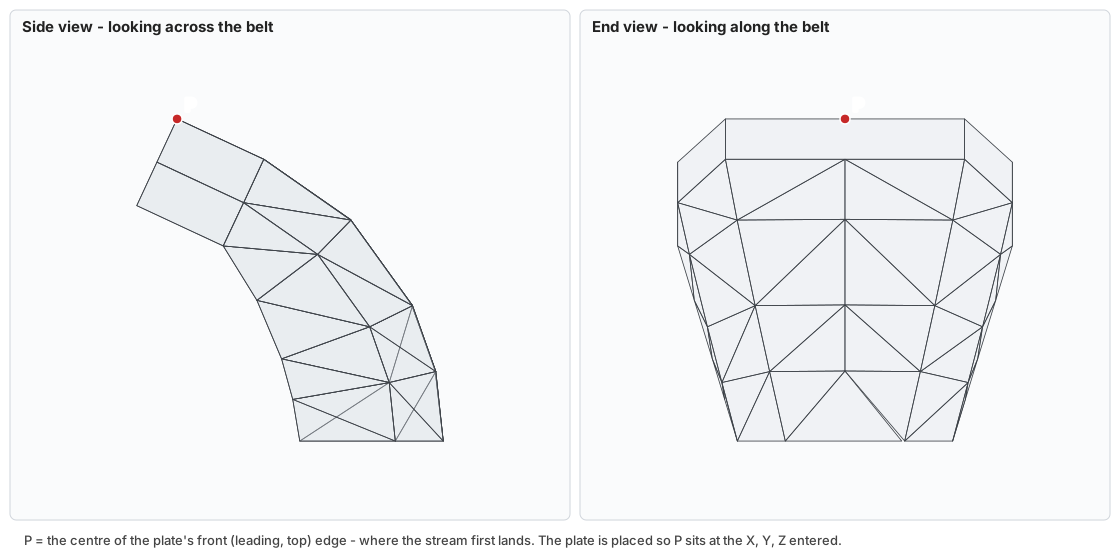
Plate types
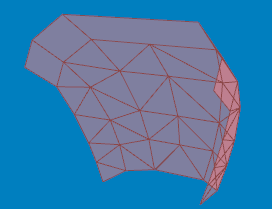
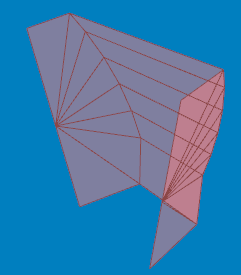
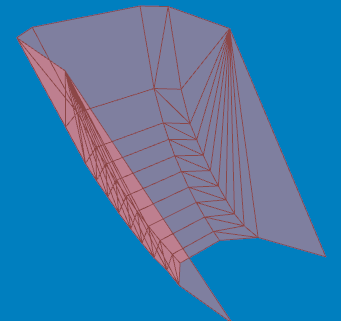
All three are real reference drawings for a 1500 mm belt, and all three are scaled and positioned the same way – they differ only in shape, so you can try a different profile without changing any other field.
- Curved Impact Plate – the original single-curve plate, with a return lip behind its front edge.
- Curved Impact Plate Type 2 – a shallower profile with a wider top lip, for a less abrupt turn.
- Impact Spoon – a deep, longer and narrower curve that turns the stream further and discharges it more gently.
The work point is the centre of each template's own front (leading, highest) edge, so the inserted plate is always centred left-to-right on the co-ordinates you give and hangs below them, whichever type you pick.
Click Draw Plate to import and scale the plate in one step. The new layer is selected in the Layers grid afterwards, ready to be positioned and given its surface properties.
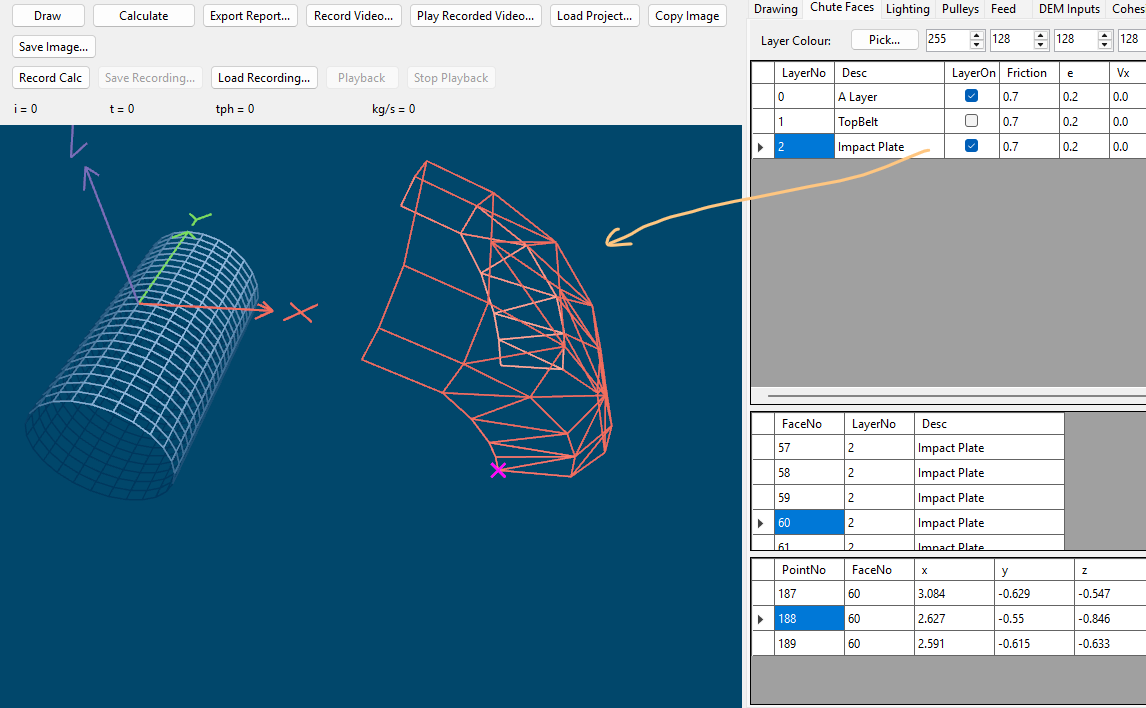
After drawing the plate
The plate arrives as an ordinary layer of faces, so you can treat it like any other geometry:
- Position it – use Adjust X,Y,Z coordinates to shift it, or Rotate Layer to tilt it into its installed orientation.
- Resize it again – if you need a second plate at a different size, Copy and Scale Layer duplicates and rescales the whole layer without re-inserting the template.
- Set its surface properties – enter the layer's Friction and e in the Layers grid. A curved impact plate is usually given a low e (around 0.2 – see Fine Tuning the Inputs) so material does not bounce off it unrealistically.