Copy and Scale Layer
Right-click the Layers table on the Chute Faces tabsheet and choose Copy and Scale Layer... to duplicate a whole layer and resize the duplicate in one step – useful for re-using a chute part you have already drawn at a different size, without redrawing it.
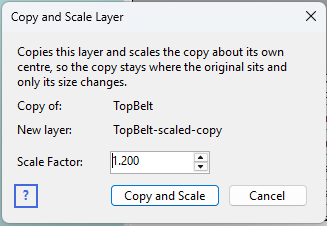
Fields
- Copy of – the layer currently selected in the Layers grid, which the copy is taken from. This layer is not changed in any way.
- New layer – the name the copy will be given: the source layer's name with -scaled-copy appended.
- Scale Factor – how much to resize the copy. Values above 1 enlarge it (2 = twice the size), values below 1 shrink it (0.5 = half size). A factor of 1 simply makes an unscaled copy.
Click Copy and Scale to create the new layer. It is selected in the Layers grid afterwards, ready to be positioned.
Where the copy ends up
The copy is scaled about its own centre, so it stays where the original sits and only its size changes – the original and the copy remain concentric. This means a scaled copy initially overlaps the layer it came from; use Adjust X,Y,Z coordinates to move it into position, or Rotate Layer to reorient it.
Every face and vertex in the copy is a new, independent object, so editing the copy never affects the original (and vice versa). Each face's plane data is recalculated at the new size, so the scaled layer is used correctly by the DEM calculation, not just drawn correctly.