Frequently Asked Questions
Why do particles fall through a chute face?
- Face stiffness is too low – increase Kn (see DEM Inputs).
- The face's vertices are not coplanar – the program can't calculate a normal vector to reflect particles off a non-planar face. If a face has more than 3 vertices, consider splitting it into triangular faces instead – a triangle is always planar, so it can never leak.
- The time step dt is too large – see DEM Theory.
Why do particles overlap and merge into each other?
The particle–particle stiffness is too low for the current time step, particle size and density. Increase it until particles only overlap slightly before being forced apart again.
Why do particles suddenly burst apart after contact?
The particle–particle stiffness is too high for the current time step, particle size and density. Decrease it until particles only overlap slightly.
How can I adjust the speed of particles on a sloping face?
On the Chute Faces tabsheet, select the layer and adjust its friction and co-efficient of restitution e: reduce friction and increase e to speed particles up; increase friction and reduce e to slow them down. Both must be between 0 and 1.
Why do particles jump upwards at the pulley?
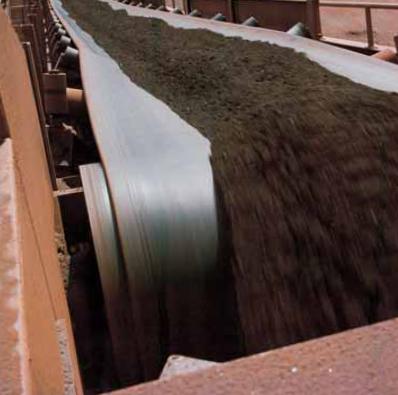
Particles are acted on by gravity at all times, which can cause them to penetrate the belt face slightly before being repulsed by its stiffness Kn. If stiffness is low and the particle is heavy, it can penetrate quite far before being repulsed – and if it then contacts the pulley, the program moves it out to the pulley's radius and imparts the pulley's surface velocity, which can noticeably alter its trajectory. This mirrors a real, observable effect (belt/material sag before the pulley altering the approach angle). To reduce it: increase face stiffness and reduce the time step dt so particles penetrate less.
How do I draw a curved impact plate?
The quickest way is Draw Curved Impact Plate – right-click the Layers table on the Chute Faces tabsheet and pick a ready-made plate or spoon shape, scaled to your belt width. Use Copy and Scale Layer afterwards if you need a second one at a different size.
If none of the supplied shapes suits, draw the curved surface as a series of flat plates (a "lobster back") in a CAD/3D program and import it – see Importing Geometry. This applies equally to a hood's impact plate and to a curved bottom section ("spoon") of a chute.
How can I make particles move around a curved impact plate?
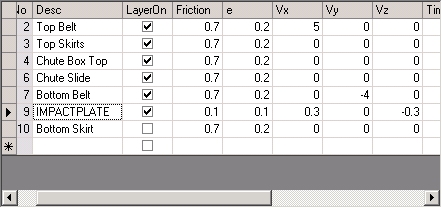
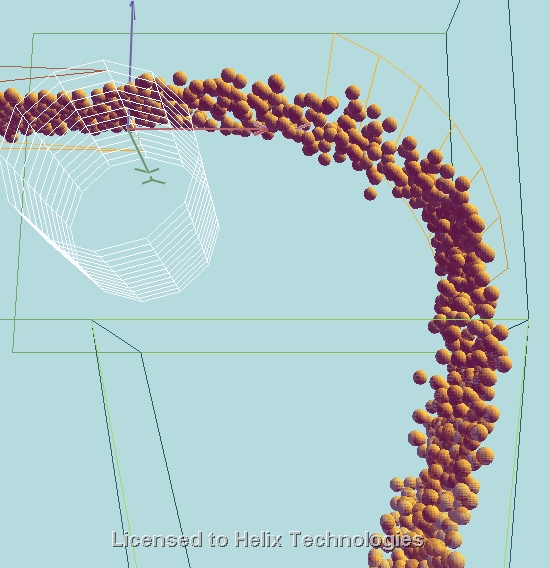
Add a small velocity component to that chute layer. For example, on a curved trajectory discharge, a small Vx = 0.3, Vz = -0.3 m/s can replicate material flowing around the curve well. Only do this if you're confident the material will actually follow that pattern – verify against observation where possible.
How can I change the wireframe line thickness?
Edit the Line Width setting on the Drawing tabsheet (in pixels; fractional values allowed, default 1.0). See Drawing Settings.
Particles are moving erratically, as if contacting invisible faces – why?
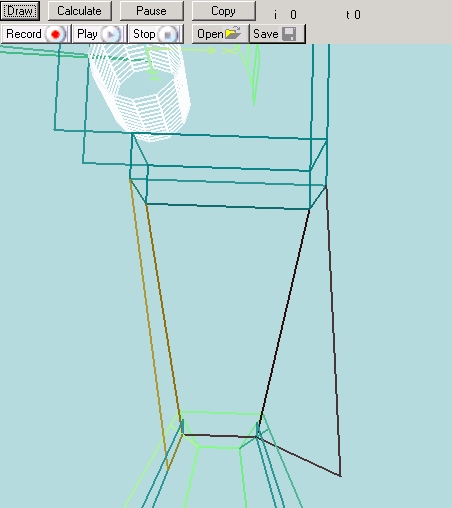
Usually caused by non-planar face vertices – check that all vertices in a face are truly coplanar (a twist is often visible when viewed end-on). The other common cause is duplicate vertices within the same face – never enter the same point twice in one face.
How can I check for duplicate vertices?
Some CAD programs (notably AutoCAD) add a duplicate vertex automatically when drawing a 3D face. After importing, right-click the layer in the Layers table and select Round off Vertices, then Remove Duplicate Vertices. See Add/Edit Layers, Faces, Vertices.
How can I change the particle colours?
See Particle Velocity Colours on the Lighting tabsheet.
Tips for importing a chute drawing from CAD
The drawing must use genuine 3D face entities – lines, polylines and solids are ignored. Group related faces onto layers/named groups in your drawing program before exporting. See Importing Geometry for the full list of preparation tips, including scaling to metres and keeping the drawing near the origin.