Importing Geometry (DXF/STL/OBJ)
You can draw chute faces directly in HelixChute2 by adding Layers, or draw them in a CAD or 3D modelling program (AutoCAD®, SolidWorks®, MicroStation®, or any tool that can export one of the supported formats) and import them using File > Import Geometry....
HelixChute2 imports three formats:
| Format | Extension | Notes |
|---|---|---|
| DXF | .dxf | Reads 3DFACE entities, one per layer/colour group. Lines, polylines and solids are ignored. |
| STL | .stl | Reads triangulated facets. If the file uses named solid blocks (ASCII STL), each named solid becomes its own layer. |
| OBJ | .obj | Reads polygon faces (quads are kept as 4-vertex faces, not triangulated); named groups/objects become layers. |
Preparing your drawing
- Faces must be genuine 3D face/polygon entities (e.g. DXF
3DFACE) – plain lines, polylines or solids are not imported. - Group related faces onto the same layer/name in your drawing program (e.g. all belt faces on a layer called "Belt", the rock box on "Rockbox", etc.) – each becomes a separate Layer in HelixChute2's Layers table, so you can then manipulate it as a unit (colour, friction, restitution, or move it).
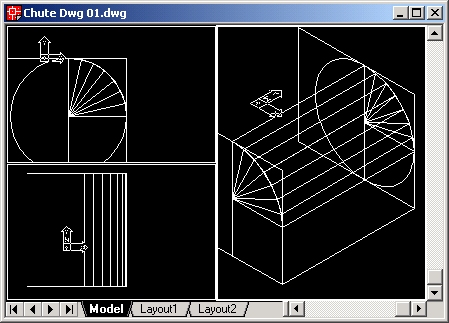
- Represent curved surfaces as a series of flat faces (a "lobster back") – the program needs a genuine plane to calculate a normal vector for particle reflection.
- Do not leave gaps between chute faces – the DEM calculation will "leak" particles through any gap.
- Draw in metres. If your drawing is in millimetres, scale it by 0.001 before exporting.
- Keep the drawing near the origin (0,0,0) – geometry far from the origin may import correctly but be out of the visible drawing range.
To import a drawing
- Open a new or existing project.
- Select File > Import Geometry....
- Choose the file (DXF, STL or OBJ) and press Open.
- HelixChute2 adds the imported faces to the Layers, Faces and Vertices tables. Press Draw to see them.
- Adjust the settings for each new layer – restitution, friction, colour, and (for moving faces such as a conveyor belt) the Vx, Vy, Vz velocity components. See Add/Edit Layers, Faces, Vertices.
- Some drawing programs (notably AutoCAD) add redundant duplicate vertices when creating a 3D face. Right-click the Layers table and use Round off Vertices then Remove Duplicate Vertices to clean these up.
An OBJ that imports as dozens of one-face layers. Because named
groups/objects become layers, a model built from many small meshes arrives as a long list of
layers holding a single face each. Select them in the Layers table and use
Merge Selected Layers... to
combine them into one layer you can set friction, e and colour on in a single step.
A detailed sample chute is supplied in all three formats under samples\Geometry
(Demo Chute.dxf, Demo Chute.stl, Demo Chute.obj) so you
can compare how each format represents the same geometry.
See also: Exporting Geometry,
Merge Layers,
Add/Edit Layers, Faces, Vertices,
FAQ (duplicate vertices, non-planar faces).