Merge Layers
Select two or more layers in the Layers table on the Chute Faces tabsheet, right-click and choose Merge Selected Layers... to move all of their faces into a single new layer.
Why you would want this. An imported OBJ file arrives as one
layer per mesh, so a chute modelled as many separate meshes lands as a long list of layers with
only one face each. Merging collapses them into a single layer you can give friction, e, colour
and velocity to in one go, instead of setting them on every mesh individually.
Selecting the layers
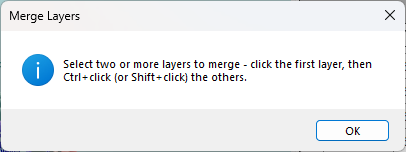
Click the first layer, then Ctrl+click each additional layer you want, or Shift+click to take a whole run of layers at once. The merge needs at least two layers selected.
Fields
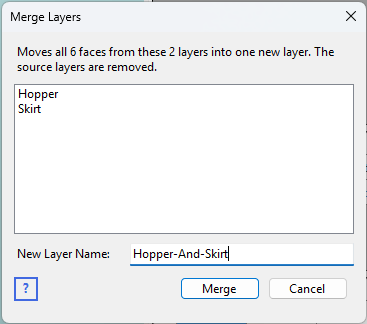
- The list at the top shows the layers that are about to be merged and the total number of faces they hold between them – check this matches what you intended before going ahead.
- New Layer Name – the name for the combined layer. It defaults to the name of the first layer in the selection.
Click Merge to combine them. The new layer is selected in the Layers grid afterwards.
What is kept
- Every face is moved into the new layer – nothing is discarded, and the geometry itself is not altered in any way.
- Each face keeps its own Desc. For an imported OBJ that is the name of the mesh it came from, so you can still tell which faces came from where after merging.
- Friction, e, velocity, colour and LayerOn are taken from the first layer in the selection. If the layers you are merging had different surface properties, check these on the merged layer afterwards and set them to what you want.
The source layers are removed once their faces have been moved. This cannot be
undone, so save your project first if you want to be able to go back.