Calculation Reports
Build a model, run and record the DEM calculation, then generate a report of the recorded data.
Viewing a report
- With a recording loaded, go to the Recording tabsheet.
- Right-click the lower (per-particle) table and choose one of:
- View Report - all Particles – generates a report covering every particle at every recorded time step. For a long recording with many particles this can take some time to generate, since it may run to many thousands of pages.
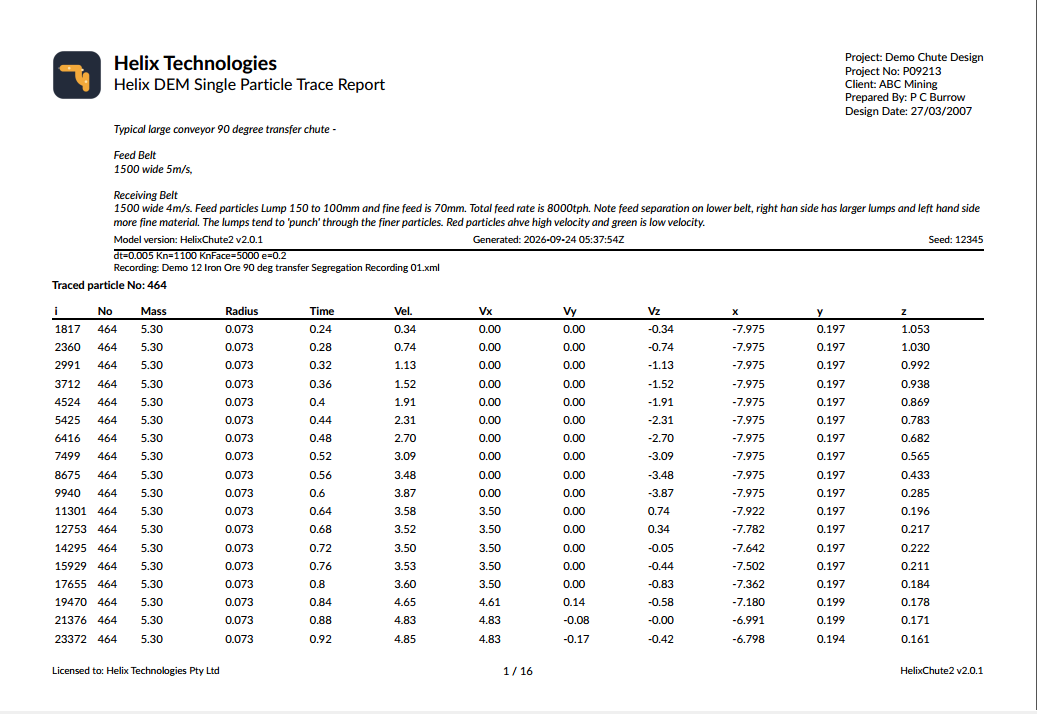
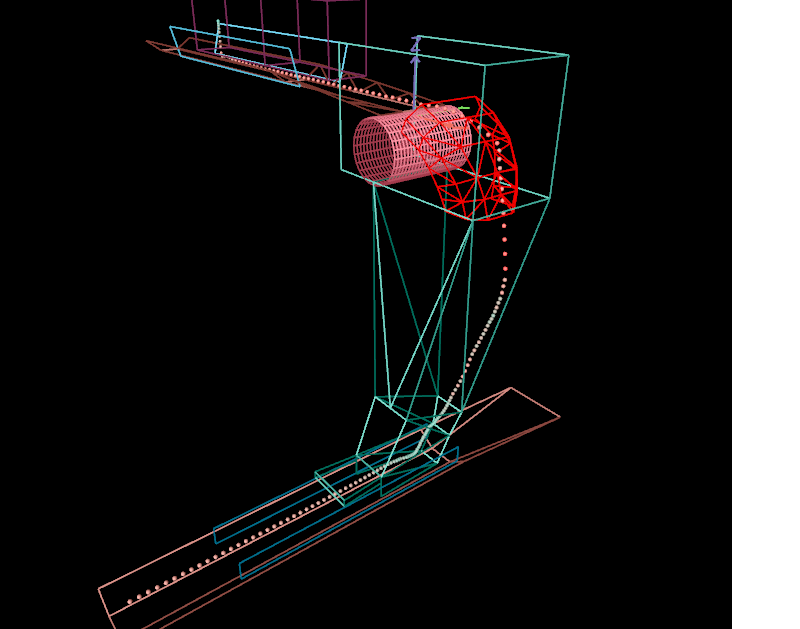
- View Report - this Particle – generates a report for just the currently selected particle (see Trace a Single Particle).
- Export Data to Excel... – see Exporting recorded data to Excel below.
The report shows, for each particle at each recorded time step:
| i | Iteration/frame number |
| No | Particle number (particles are removed once they move outside the model's boundary – see the Global Space Limits setting on DEM Inputs) |
| Mass | Particle mass, kg |
| Radius | Particle radius, mm |
| Time | Simulated time at this step |
| Vel | Particle speed, m/s (√(Vx²+Vy²+Vz²)) |
| Vx, Vy, Vz | Velocity components, m/s |
| x, y, z | Particle position at this time step |
The report is generated as a PDF, which you can save, print or page through using the report viewer's toolbar. HelixChute2's PDF reports also carry the licensed customer name and the program icon in the footer, alongside the usual particle data.
Exporting recorded data to Excel
To analyse the raw recorded data in a spreadsheet, right-click the lower (per-particle) table on the Recording tabsheet and choose Export Data to Excel.... Choose where to save the file (the dialog starts in whichever folder you last saved an Excel export to) and every recorded particle across every frame of the loaded recording is written to a real .xlsx workbook, laid out as an Excel Table – the same column set as the PDF report above (i, No, Time, Radius, x, y, z, Vx, Vy, Vz, Vel, Mass).
Because it's a genuine Excel Table, the header row's sort/filter dropdowns work immediately, and any formula you type into a column to the right of the data (e.g. a chute wear calculation based on velocity and position) automatically extends down as far as the data goes.