Adding Material Feed Boxes
HelixChute2 lets you add up to 10 material feed points to any transfer chute design. Each feed point can be located anywhere, with its own feed rate (tonnes per hour), material density, and minimum/maximum lump size.
How feeding works
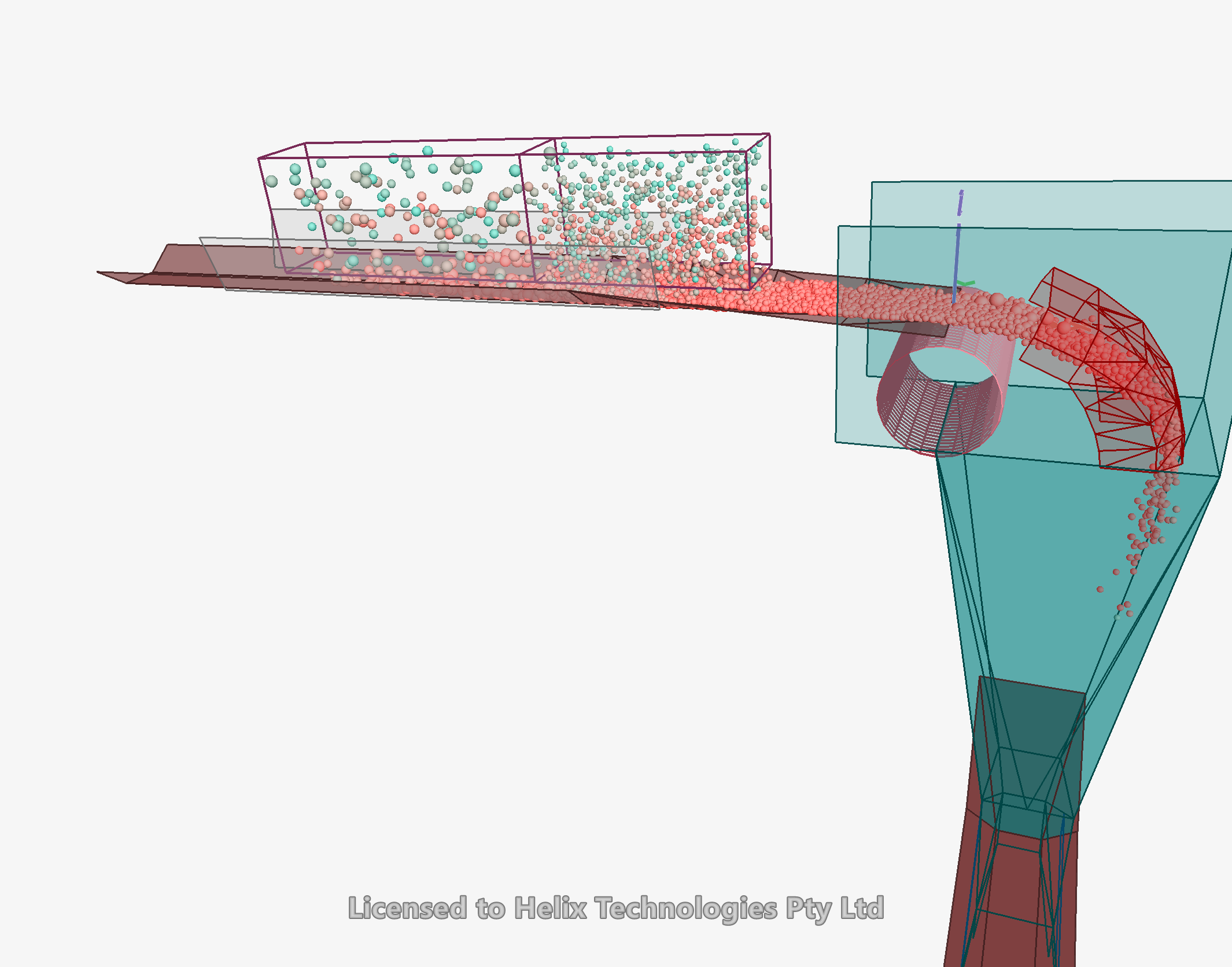
Each feed box is specified by two points in space – its upper-left and lower-right corners – which define its location and size. During DEM calculation, the program creates new particles at random locations within the feed box volume, with random sizes between the minimum and maximum you specify. The particles then fall freely under gravity until they interact with chute faces, belts or other particles.
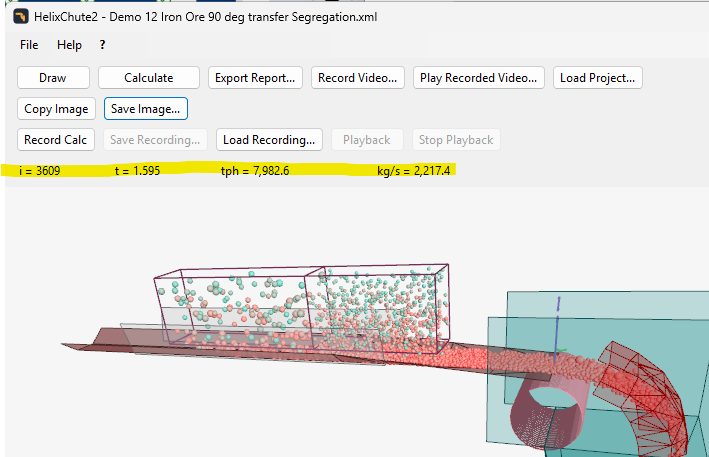
The number of particles created at each time step is based on the cumulative mass already fed, so the overall feed rate matches the tonnes-per-hour rate you specify. The current particle count and cumulative feed rate for all feed boxes are shown on the status bar above the drawing.
Adding and editing a feed box
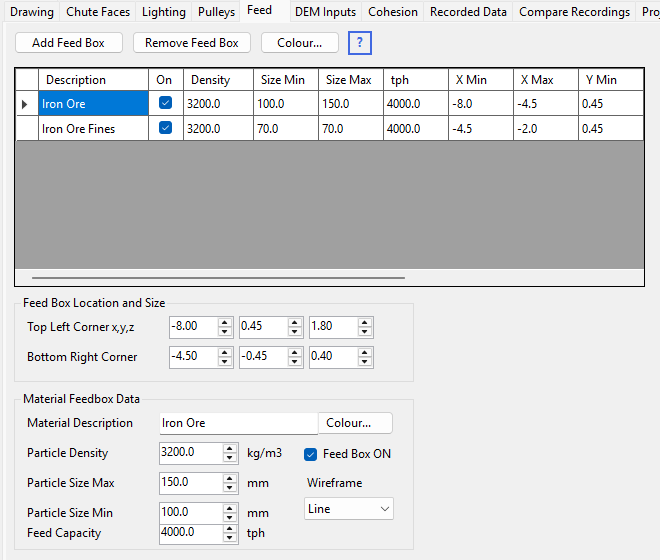
Every transfer chute needs at least one feed box. Click the Feed tabsheet to see the Feedboxes table and current settings, with text boxes below the table for the currently selected row.
- Click the empty row of the table and type a description for the feed.
- Move to the newly added row to select it and reveal its details in the text boxes.
- Edit the box location, then description, and particle density (the density of the solid material or lumps, not bulk density – see Particle Density).
- Enter minimum and maximum particle size. Start with larger lump sizes for early calculation runs – fewer particles are then needed to reach the target tph, so calculations run faster.
- Rotation % is the percentage of particles free to rotate.
- Enter the feed capacity in tonnes per hour. Start small for quick calculations, then increase towards the final design capacity once the chute is optimised.
- Set the particle and feed box colour with the colour button, and choose Wireframe or solid display. See also the Velocity colours setting – Particle Velocity Colours.
All of the above can also be edited directly in the Feedboxes table. To switch a feed off, set its feed rate to zero tph.
- Demo version: a total feed rate of at most 1000 tph, a minimum particle size of 150 mm diameter, and one feed box only.
- Standard: a total feed rate of at most 1000 tph, and one feed box only.
- Professional: up to 10 feed boxes and no feed rate limit – the panel is not shown.